For CAD trainers, tutors and software demos

Free OS MasterMap CAD sample data

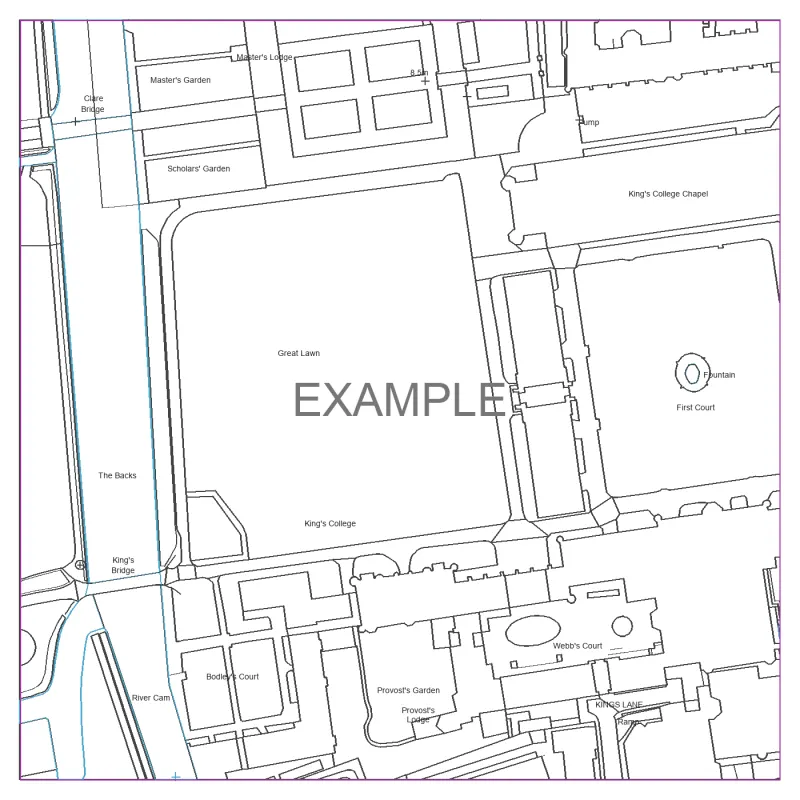
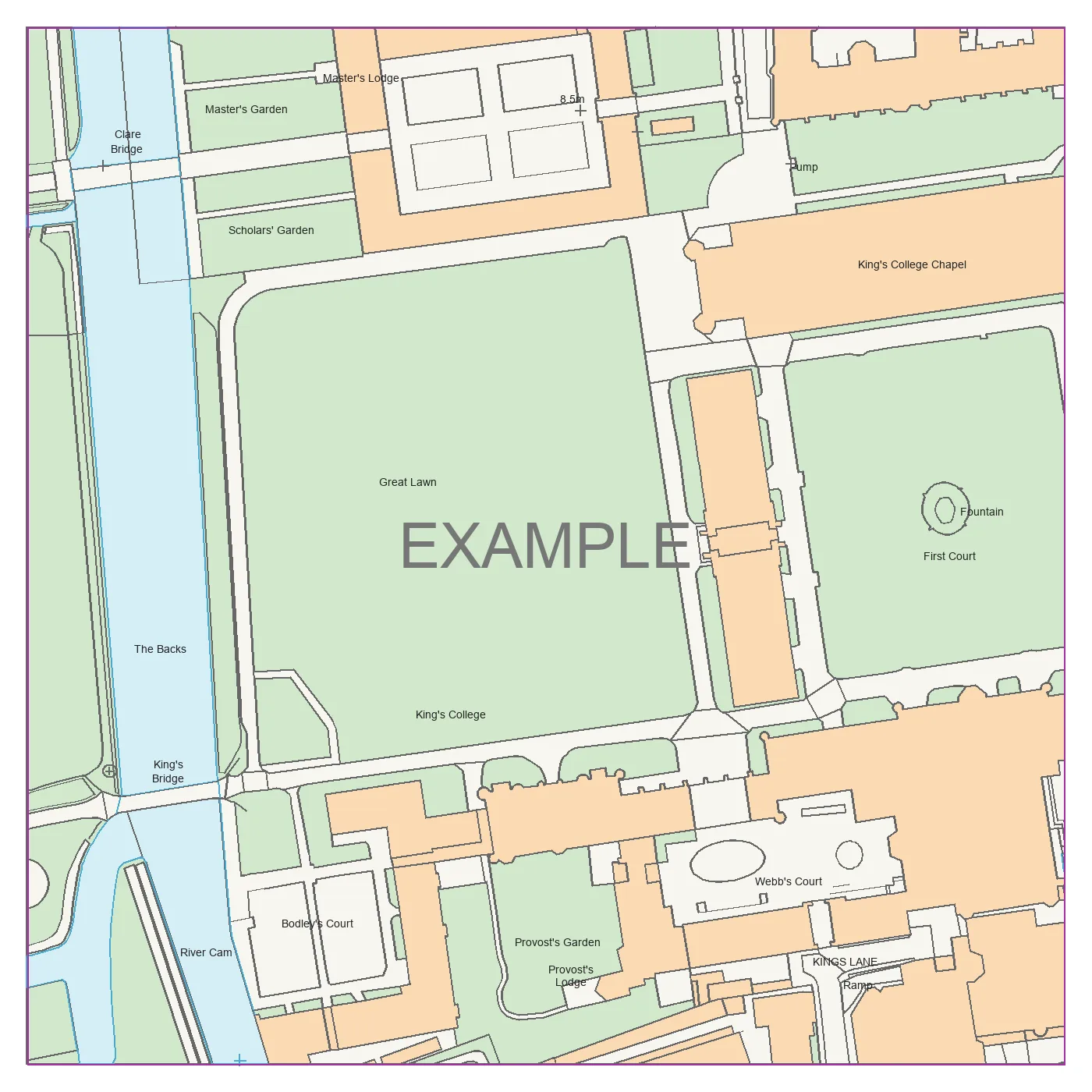
A real, licensed OS MasterMap drawing of King's College and River Cam, Cambridge, ready to open in AutoCAD, Revit, SketchUp, Vectorworks or QGIS. Use it in courses, tutorials and demos. No sign-up.

DWG, DXF, PDF and a preview image · British National Grid, metres · 225 × 225 m

OS MasterMap CAD linework of King's College and the River Cam, Cambridge, from the sample pack

What's in the pack

The ZIP holds all four files plus a README with the usage terms. You can also download them one at a time.

Coordinates
British National Grid (EPSG:27700), units metres
Extent
E 544537–544762, N 258219–258444
Layers
Named by type: 1.xx text, 2.xx symbols, 3.xx lines, 4.xx colour fills
Markings
Carries EXAMPLE labels and the OS copyright notice

How to import it

The drawing sits at its real-world British National Grid position, so features are hundreds of kilometres from the origin. Each guide below covers the step that usually trips people up.

AutoCAD

Use cambridge-example.dwg

  1. Open the DWG with File > Open. Drawing units are metres.
  2. If the screen looks empty, type ZOOM, press Enter, then E for Extents.
  3. Turn off the 4.xx fill layers for clean linework, or keep them for a colour site plan.
  4. Coordinates are real BNG eastings and northings, so you can overlay other OS or survey data directly.

Revit

Use cambridge-example.dwg

  1. Start a project and go to Insert > Link CAD.
  2. Set Import units to Meter, Positioning to Auto - Center to Center, and untick "Correct lines that are slightly off axis".
  3. Go to Manage > Coordinates > Acquire Coordinates and click the linked drawing, so the project shares its BNG coordinates.
  4. Link any later survey or contour files with Auto - By Shared Coordinates so they line up.

SketchUp Pro

Use cambridge-example.dwg

  1. Go to File > Import and choose AutoCAD Files (DWG, DXF).
  2. Under Options, set units to Metres and leave "Preserve drawing origin" unticked, so the model lands near SketchUp's origin.
  3. SketchUp brings in the linework but not the colour fills. Use the PDF or PNG if you need the colours as a reference.

Vectorworks

Use cambridge-example.dwg

  1. Go to File > Import > Import DWG/DXF and choose the file.
  2. Set the import units to metres.
  3. If Vectorworks warns that the drawing is far from the origin, let it centre the drawing to avoid precision problems.
  4. If you need real-world coordinates, set the document's georeferencing to OSGB 1936 / British National Grid (EPSG:27700).

QGIS

Use cambridge-example.dxf

  1. Drag the DXF into QGIS, or use Layer > Add Layer > Add Vector Layer.
  2. If asked for a coordinate system, choose EPSG:27700 (British National Grid).
  3. Load it alongside any OS OpenData or your own survey layers. They line up without any shifting.

Usage terms

You can use it for

  • Training courses, workshops and CPD sessions, including paid courses
  • Video tutorials, blog posts and course handouts
  • Software demonstrations and testing CAD or GIS import workflows

Please don't use it for

  • Planning applications, Land Registry plans or any real project drawing
  • Removing the EXAMPLE markings or the Ordnance Survey copyright notice
  • Selling or redistributing the files on their own outside your course materials

Need a real site? Order a licensed CAD plan for any address in Great Britain.

Credit PlanningMapsUK

The pack is free. If you use it, please add this line to your course page, slides, handout or video description.

Plain text

Sample map data courtesy of PlanningMapsUK (www.planningmapsuk.co.uk)

HTML for your website

Sample map data courtesy of <a href="https://planningmapsuk.co.uk/cad-sample-data">PlanningMapsUK</a>

Running a course that needs a different area?

Training providers and colleges can ask us for a sample of another area or scale for their course materials. Get in touch and tell us about the course.

Contains OS data © Crown copyright and database rights 2026 OS (AC0000871051).